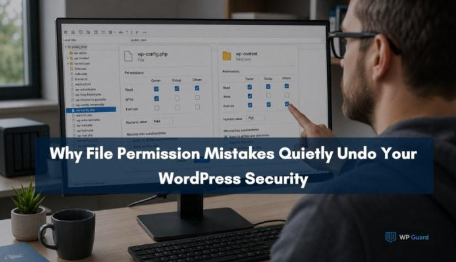
Site owners often spend hours protecting their login page against brute force attacks and never once look at their WordPress file permissions. That’s a problem because a single misconfigured directory can undo everything else you’ve done.
Our team at WP Guard has audited hundreds of compromised WordPress sites, and file permission issues come up in the majority of cases we investigate. So we know exactly what attackers look for.
In this article, we’ll cover what the correct values are and which files need special attention. From there, we’ll show you how to identify permission problems before they’re exploited. Let’s get started.
What File Permission Mistakes Expose Sensitive Data
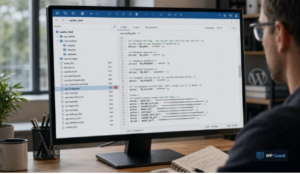
Incorrect file permissions can expose sensitive files or allow attackers to gain access to areas they shouldn’t be able to reach. On a WordPress site, permissions that are too loose can make configuration files, credentials, or other important data easier to access or modify.
Here are the most common file permission mistakes:
- 777 on Directories: This is the worst permission setting you can apply because it gives every user account and process on the server full read, write, and execute access. That includes anyone who shouldn’t have access in the first place.
- Default 644 on wp-config.php: WordPress creates wp-config.php at 644 out of the box, which means other users on the same server can read it. This file holds your database credentials, which attackers could use to gain unauthorized access if those details are exposed.
- Write Access on PHP Files: Attackers can exploit security vulnerabilities to push malicious scripts into writable PHP files without needing server-level access. All they need is a writable PHP file.
- Open Directory Listing: Your web server will display a full list of files inside any folder that doesn’t have an index file. Unauthorized users can use that list to map your entire directory structure.
- Built-In Theme Editor Permissions: The built-in theme and plugin editor allows authorized WordPress users to modify files directly from the dashboard. That’s a broader level of access than hardening WordPress recommends for most sites.
These mistakes often go unnoticed because your site keeps running normally, with no obvious errors or warning signs. That’s exactly why they can cause so much damage before you realize something’s wrong.
What the Correct WordPress File Permissions Look Like
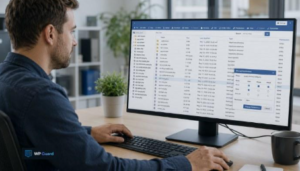
For most WordPress sites, the correct permissions are 644 for files and 755 for directories. However, some sensitive files require stricter settings to prevent unauthorized access and keep your site secure.
Let’s break down what each file permission does.
Files vs. Directories: The Core Difference
Files and directories don’t work the same way on your server, so they don’t use the same permissions. A file at 644 means only the user who owns the file can write to it, while everyone else can only read it.
Directories work differently, though. At 755, the web server process can enter a folder and serve its contents without write access.
One more thing. Directories also need execute permission, which allows the web server to access files and subdirectories inside them.
The Right Settings for Core WordPress Files
File permissions don’t need constant attention when they’re configured correctly from the start. 644 is the standard setting for most files in a WordPress installation because it restricts changes to the file owner.
However, your root WordPress directory needs 755 permissions. With this setting, a plugin can’t write outside its own folder unless it has the required access (it also makes accidental file changes less likely).
How to Lock Down wp-config.php
Since wp-config.php contains your database credentials, you should set its permissions to 440 or 400. WordPress may create it with 644 permissions, and it can pose a security risk on shared hosting.
When you set the permission to 440, both the file owner and the web server can read it, but it gives access to nobody else. But you need to be careful with this file. Wrong permissions on this one file can expose your database name, username, and password to every other account on the same server.
What .htaccess Permissions Should Be
The .htaccess file controls how your server handles incoming requests, including firewall rules. It also automatically generates rewrite rules for WordPress each time you save your permalink settings.
As WordPress rewrites it regularly, it needs to stay at 644. Write access in the wrong hands will allow attackers to redirect login attempts or remove your security rules without touching a single plugin.
Diagnostic Tip: A sudden 500 error after editing .htaccess often points to an invalid directive or syntax error rather than incorrect file permissions.
When WordPress Itself Needs Write Access
Some parts of WordPress need write access to function properly. In particular, the web server needs permission to write to upload directories when you add images and other media files.
For example, a WooCommerce store that can’t write to the uploads folder will break product image uploads during a busy sale.
We recommend granting write access only where the PHP process requires it, and restricting everything else.
How to Find and Fix Permission Problems on Your Site
Permission issues often appear after a migration, update, or plugin installation. They can be difficult to detect because your site may continue working normally even when the underlying permissions have changed.
Make sure to check the following things:
- Post-Migration Permission Reset: Web hosts often transfer files under a different system user, which can reset file ownership. As a result, folder permissions may no longer be appropriate for the new hosting environment.
- Post-Install Permission Check: Certain WordPress plugins broaden directory permissions during setup to get themselves working. Once the install’s done, those broader permissions stick around even when you don’t need them anymore.
- Failed Update File Audit: A core, plugin, or theme update that stops halfway through can leave individual files and directories in inconsistent states. Some files or directories may become too restrictive, while others may allow more access than intended.
- Damage Recovery Permission Reset: SSH is the fastest way to change file permissions across your entire installation. Run one command for files and one for directories. But if you don’t have SSH access, cPanel’s File Manager will allow you to apply the same changes manually, folder by folder.
As a beginner, you can use a WordPress security plugin to scan your installation and flag files or directories with incorrect permission settings.
Fix Your File Permissions Before Attackers Find Them
File permissions can change over time, especially after migrations, plugin installations, or failed updates. Fortunately, the recommended settings are simple: 644 for most files, 755 for directories, and 440 or 400 for wp-config.php.
You should also lock down your .htaccess, disable directory listing, and only grant write access where WordPress truly needs it. These settings will reduce unnecessary access and help protect your site from common security threats.
If you’d rather have our team handle it, WP Guard audits and hardens your WordPress file permissions as part of every security plan. Talk to our team today.